Why remote pair programming needs a different threat model
Most teams treat remote pairing as “a video call with screen share.” In practice, a good pairing session is closer to temporarily extending your workstation to another person: they can see your desktop, hear your environment, and—if you allow it—control your keyboard and mouse. That expanded surface area changes what “secure enough” means.
A practical threat model for remote pair programming focuses on the ways sensitive data can escape during a normal, fast-moving session: clipboard leaks, notifications and overlays, IDE and terminal history, browser autofill, and the risk that remote control can be abused to take actions you didn’t intend. The goal isn’t paranoia; it’s to keep pairing fluid while reducing avoidable exposure.
Start with scope and trust boundaries
Threat modeling works best when you define boundaries in plain language:
- Actors: the host (sharing), the guest(s), and the conferencing/pairing app.
- Assets: source code, credentials, customer data, internal URLs, incident artifacts, and any regulated data (PII/PHI/PCI).
- Channels: video/screen pixels, audio, chat, file transfer, clipboard sync, and remote control.
- Session contexts: internal pairing, interviews, client work, open source collaboration, or debugging production incidents.
Even within “trusted teammates,” the boundary matters: interns, contractors, and external collaborators may be authorized for the task but not for every asset visible on your desktop.
The real risks go beyond screen pixels
1) Clipboard leaks and paste accidents
The clipboard is a high-frequency, low-friction channel where secrets routinely pass through: API keys copied from a password manager, one-time login codes, customer emails, SSH commands, or internal links. During pairing, clipboard issues show up in a few common ways:
- Clipboard sharing: Some tools sync clipboard contents to make collaboration smoother. That can unintentionally export sensitive snippets.
- Wrong-target paste: You intend to paste into the terminal but paste into chat, a browser address bar, or a public issue.
- Clipboard history exposure: Clipboard managers can surface a menu of recent clips on screen.
Practical mitigations: disable clipboard sync by default (enable only when needed), clear the clipboard before sessions, and use “paste without formatting” shortcuts to reduce accidental multi-line pastes. When the session requires sharing a secret (rare), prefer time-bounded credentials or scoped tokens rather than long-lived keys.
2) Notifications, overlays, and “ambient” data
Remote pairing often exposes data that isn’t in the editor: calendar popups, password manager prompts, email previews, Slack notifications, or a browser tab title that includes a customer name. These leaks are common because they happen at the edges of attention—someone messages you mid-debug, a meeting reminder appears, or an auth dialog prompts for a second factor.
Practical mitigations: use OS-level Focus/Do Not Disturb, close unrelated apps, and hide menu bar widgets that display sensitive status. If you frequently pair in production-heavy environments, consider a dedicated “pairing” user profile with minimal logged-in services.
3) Peripheral takeover via remote control
Remote control is the feature that makes pairing feel local—and it’s also where risk becomes “actionable,” not merely “observable.” With control enabled, a guest can:
- Run commands in a shell or REPL.
- Change git remotes, branches, or hooks.
- Open password managers or system settings.
- Trigger destructive actions (deleting files, pushing commits, closing windows).
This isn’t about malicious teammates; it’s about speed, misclicks, or mismatched assumptions. A guest may run a familiar command that’s safe on their machine but risky on yours.
Practical mitigations: treat remote control as a privileged mode. Enable it intentionally, keep it off by default in high-stakes contexts (production incident response, handling customer data), and prefer “talk-first” habits for dangerous actions. You can also agree on a lightweight protocol: narrate commands before execution, and keep the terminal visible when running scripts.
4) IDE and terminal history as an accidental data export
Autocomplete, command history, and MRU (most recently used) lists are productivity features that can reveal more than intended: internal hostnames, past customer IDs, query fragments, or secret-laden environment variables. Similarly, logs can contain session tokens or user emails.
Practical mitigations: use separate profiles for workstreams, avoid exporting environment variables containing secrets into shell history, and sanitize logs before sharing. When debugging data issues, a field-level approach helps; the same discipline you’d apply when cleaning data pipelines applies here too (for example, adopting a checklist mindset similar to a field mapping audit).
5) Browser and cloud console exposure
Many pairing sessions drift into browser-based tooling: CI dashboards, feature flag consoles, analytics, cloud providers, or customer support systems. The risk is less about the screen share itself and more about what those tools reveal via saved sessions, autofill, and navigation history.
Practical mitigations: use least-privilege accounts for day-to-day work, log into admin consoles only when needed, and prefer read-only roles when pairing with external collaborators. If you must access sensitive consoles, consider switching to a secondary desktop/workspace and sharing only that.
Choosing controls that preserve flow
Security controls fail when they slow pairing to the point people bypass them. The most effective mitigations are the ones that become routine.
Make “what’s visible” an explicit preflight
Before you share, do a 20-second scan: open windows, browser tabs, terminal panes, and notification settings. If your team already uses lightweight rituals to convert meeting outputs into action, applying a similarly repeatable preflight to pairing can reduce avoidable leaks without adding much friction.
Prefer tools that reduce what leaves the machine
Architecture matters. Some remote collaboration stacks route streams through vendor infrastructure; others emphasize end-to-end encryption and minimizing what is stored or relayed. For engineering teams that pair frequently, it’s reasonable to treat the pairing app as a core part of the workstation security posture.
tuple.app is designed specifically for remote pair programming with an emphasis on crisp audio/video, low-latency remote control, and end-to-end encryption where screen and audio aren’t sent to the company’s servers. It also supports hiding sensitive applications and notifications before sharing, which directly addresses common leakage paths during day-to-day sessions.
Adopt a tiered policy by session type
Not every pairing session has the same risk profile. A practical policy uses tiers:
- Internal feature work: normal pairing; remote control allowed; standard preflight.
- Interview pairing: minimal access; share a clean environment; avoid customer data; consider disabling clipboard sync.
- Client/partner pairing: least privilege; avoid internal dashboards; share only the necessary app/window.
- Incident response: control off by default; strict narration; avoid opening credential stores on the shared desktop.
Operational habits that prevent most pairing incidents
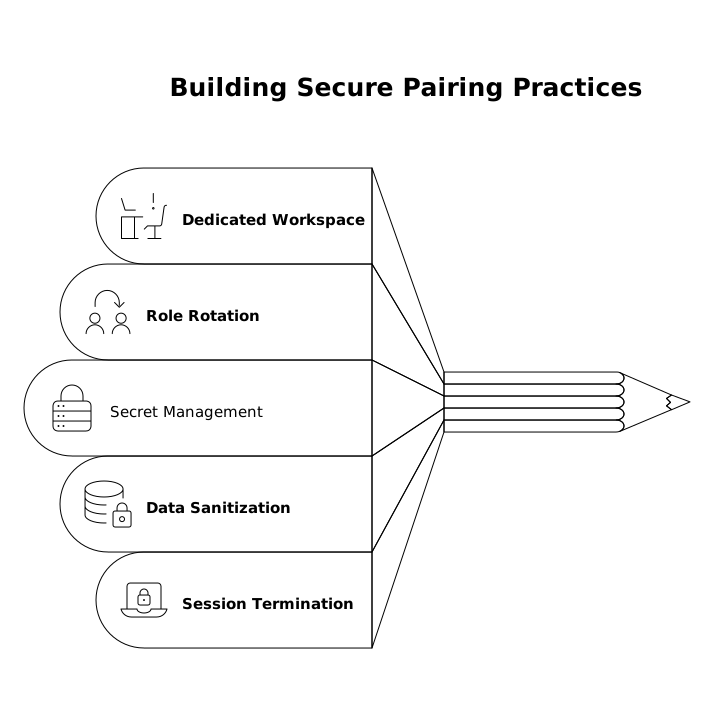
- Use a dedicated pairing desktop/workspace: keep chat/email on a non-shared workspace.
- Rotate roles intentionally: role-swapping is great for flow, but treat “who controls” as a deliberate state change.
- Keep secrets out of the clipboard: use scoped tokens, short-lived credentials, or secret injection via tooling rather than copy/paste.
- Sanitize before you share: redact logs, truncate dumps, and avoid scrolling through historical terminals.
- End sessions cleanly: revoke temporary credentials and close sensitive tabs; don’t rely on “I’ll do it later.”
Internal references for building a repeatable workflow
If you want the threat model to stick, it helps to convert it into a checklist and a short ritual. For teams that already systematize operational hygiene, these patterns can translate well:
- A Field-Level CRM Sync Checklist for Cleaner Sales Call Data (useful as inspiration for turning “known failure modes” into a quick preflight)
- A 10-Minute Agenda-to-Actions Ritual to Turn Meeting Notes Into Time-Blocked Tasks (a model for converting pairing learnings into concrete policy and defaults)
Frequently Asked Questions
How can Tuple help reduce accidental leaks during remote pair programming?
Tuple supports end-to-end encrypted sessions and includes options to hide sensitive apps and notifications before sharing, which reduces common exposure from popups, overlays, and unrelated windows.
Should we disable remote control when using Tuple for pairing?
Use a tiered approach: allow remote control for low-risk internal work, and disable it by default for interviews, client sessions, and incident response. In Tuple, treat enabling control as a deliberate step, not the default.
What’s the simplest way to prevent clipboard leaks while pairing in Tuple?
Start by avoiding clipboard sync unless you explicitly need it, clear the clipboard before sessions, and prefer short-lived or scoped credentials so an accidental paste is less damaging.
How do we model the risk of notifications and side-channel data in a Tuple session?
Assume anything that can appear on your desktop can be disclosed: chat previews, calendar alerts, password manager prompts, and browser tab titles. Use Do Not Disturb and hide sensitive apps/notifications before you share in Tuple.
What policy should we use for external collaborators pairing via Tuple?
Use least-privilege accounts, share only the necessary window/workspace, avoid customer dashboards, and keep remote control off unless there’s a clear need. This keeps collaboration effective without expanding access beyond the task.