Why pairing calls fail when audio is “mostly fine”
Remote pairing is unusually sensitive to audio. You’re listening closely for intent (“are you asking a question or thinking out loud?”), you’re reacting quickly, and you’re often juggling system audio (alerts, music, videos), your own mic monitoring (sidetone), and push-to-talk (PTT). When these elements aren’t deliberately balanced, teams run into the same problems: echo loops, fatigue from over-loud monitoring, or a constant feeling of being slightly “out of sync.”
The Pairing Audio Mix is a practical method to set levels and routing so you can hear your partner clearly, keep your own voice comfortable, and use PTT without audio surprises. It’s vendor-agnostic, but it maps especially well to a pairing-first tool like tuple.app, where crisp voice and low-latency collaboration are part of the core experience.
The Pairing Audio Mix in one sentence
Set one stable “reference” level (your partner), then layer in system audio and mic monitoring at intentionally lower ratios, with PTT behavior that never creates echo or forces you to shout.
Start with the three channels you’re actually mixing
1) Partner voice (the reference channel)
Your partner’s voice is the only channel that must be intelligible at all times. Treat it as the reference. If you tune everything else first (music, notifications, mic monitoring), you’ll keep chasing the mix and still miss words when the conversation speeds up.
2) System audio (useful but optional)
System audio includes notification sounds, video playback, music, and any app audio you might share. In pairing, it’s often incidental. If it competes with speech, you’ll subconsciously strain to decode speech in noise—one of the fastest paths to fatigue.
3) Mic monitoring or sidetone (comfort channel)
Mic monitoring lets you hear yourself in your own headphones. Done well, it prevents you from talking too loudly and reduces the “sealed headphones” effect. Done poorly, it creates distracting slapback or makes you hyper-aware of mouth noise and room reflections.
Step-by-step setup for a stable, low-fatigue mix
Step 1: Make headphones non-negotiable
Speakers are the main cause of echo and double-talk artifacts. For pairing calls, start with closed-back or semi-closed headphones. If you must use open-back, keep volume moderate and disable any monitoring that causes bleed into the mic.
Step 2: Pick your reference loudness using partner voice
Join a call and have your partner read a few lines or talk normally. Set your headphone volume so their speech is clear and comfortable, not “loud.” A good target is: you can understand every word without leaning in, and you could tolerate the level for a two-hour session.
Don’t touch this volume again unless something changes (different headphones, different environment). The stability of this reference is what makes the rest of the mix easy.
Step 3: Set your mic gain for normal speech, not for PTT panic
With headphones on, set mic input gain so your normal speaking voice meters consistently, without clipping on laughs or emphasis. The common mistake with PTT is under-gaining the mic, then compensating by speaking too loudly when you press the key. That raises fatigue and increases plosives.
If your calling app has input meters, use them. If not, do a quick recording test locally. The goal is steady, predictable loudness for your partner.
Step 4: Add mic monitoring at “just enough”
Enable mic monitoring (sidetone) only after your partner voice and mic gain are stable. Start very low—barely audible—and increase until you stop over-projecting. For most people, mic monitoring should sit well below the partner channel. If it feels “present” the whole time, it’s probably too loud.
If your monitoring sounds delayed, don’t try to get used to it. Turn it off and rely on bone conduction plus your partner’s feedback. Monitoring latency is one of the quickest ways to create cognitive load.
Step 5: Layer system audio as a background element
Now set system audio so it can’t mask speech. A practical check: play a short video or music quietly and talk with your partner. If either of you says “what?” more often, lower system audio further or route it somewhere else (or pause it during pairing).
If you routinely pair while triaging issues, consider operational habits that reduce audio interruptions: fewer notification sounds and a consistent workflow for handling alerts. This is similar in spirit to having a clear decision window like a triage SLA playbook—the less background churn, the more usable your attention is for the session.
Push-to-talk without echo, clipping, or awkward timing
Choose a PTT strategy: “open mic with discipline” vs “true PTT”
PTT is useful when you’re in a noisy environment or you want maximum privacy. But it introduces timing costs: you think, then press, then talk—often a half beat late. For pairing, consider these two stable patterns:
- Open mic with discipline: use noise suppression, keep your space controlled, and mute only when you step away.
- True PTT: commit to it and make it effortless with a dedicated key or mouse button.
Prevent “PTT shout” with monitoring and gain
If you use PTT, the easiest way to avoid shouting is to keep mic monitoring low-but-present and mic gain correct. You should be able to press-to-talk and speak in the same tone you’d use in a shared office.
Avoid echo loops when sharing system audio
Echo often appears when system audio is routed back into the call while your mic is also picking up headphone bleed or room sound. Practical safeguards:
- Keep everything on headphones (no speaker playback).
- If you’re sharing system audio, keep your mic monitoring modest and watch for any “doubling” artifacts.
- Use one primary calling tool at a time; avoid joining the same call on two devices.
A repeatable calibration routine for teams
Audio setups drift. People switch headphones, move from home to office, or plug into a different dock. The Pairing Audio Mix works best when it’s treated as a quick calibration, not a one-time project.
Run a 90-second check at the start of a long session
- Partner voice: confirm it’s comfortable and clear.
- Your mic: say a few sentences; confirm you’re not clipping and not whisper-quiet.
- Monitoring: ensure it’s not louder than necessary.
- System audio: keep it low or paused.
Teams that already standardize “how we work” (notes, decisions, follow-ups) tend to standardize audio successfully too. If you’re trying to make pairing outcomes more reliable, pairing-friendly audio habits complement process habits like a two-layer notes system that keeps decisions from getting lost after the call.
Where Tuple fits naturally in the audio mix
The biggest audio wins come from clarity and low friction: a call that connects quickly, stays stable, and makes speech feel immediate. Tuple is designed around this pairing-first experience—crisp audio, low latency, and a focused desktop app that stays out of the way while you collaborate. When your reference channel (partner voice) is consistently clean, the rest of the Pairing Audio Mix becomes easier to maintain because you’re not compensating for artifacts with volume.
Practical targets you can use today
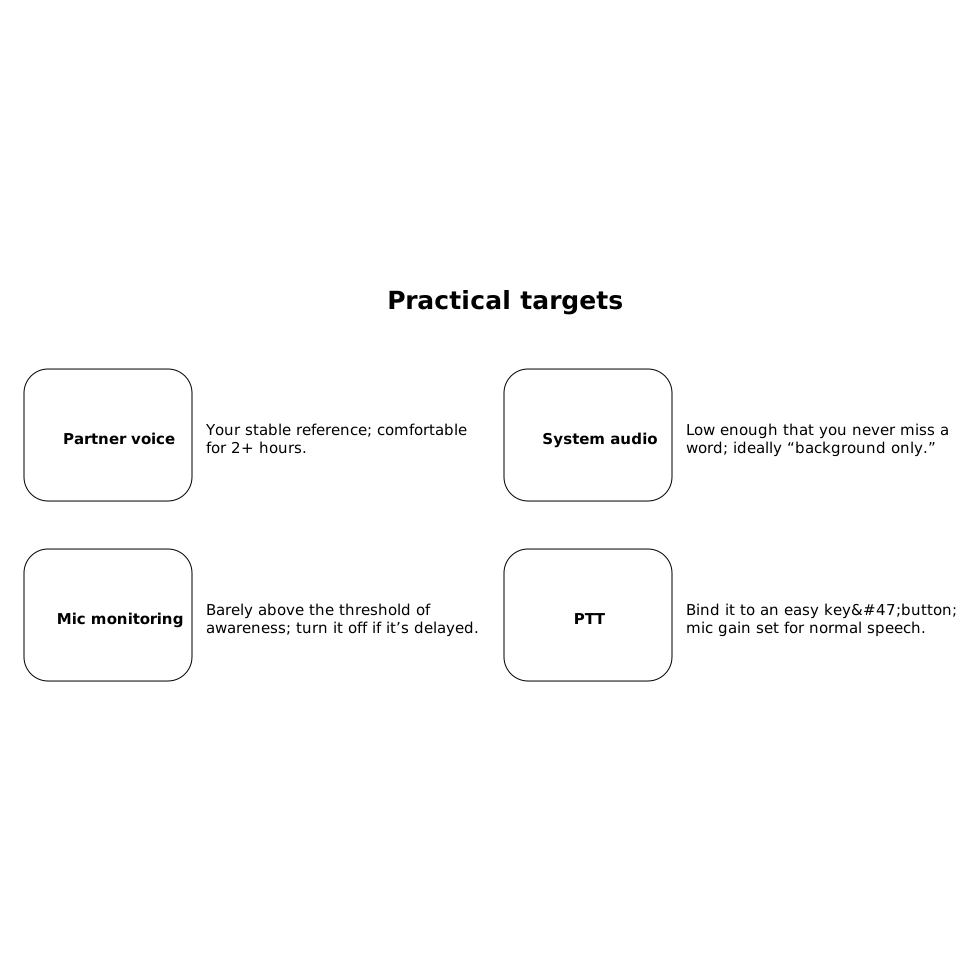
- Partner voice: your stable reference; comfortable for 2+ hours.
- System audio: low enough that you never miss a word; ideally “background only.”
- Mic monitoring: barely above the threshold of awareness; turn it off if it’s delayed.
- PTT: bind it to an easy key/button; keep mic gain set for normal speech.
Frequently Asked Questions
How does Tuple help implement the Pairing Audio Mix in real pairing sessions?
Tuple’s focus on crisp, low-latency audio makes your partner’s voice a stable reference level. When that channel is clear, you can keep system audio and mic monitoring lower without straining to understand speech.
Should I use push-to-talk in Tuple or keep an open mic?
In Tuple, open mic works well in quiet environments because it preserves conversational timing. Use push-to-talk when you have background noise or need privacy, and bind it to an easy key so you don’t speak late or rush your words.
What mic monitoring level is best while pairing in Tuple?
Keep monitoring in Tuple (or via your OS/interface) just audible enough to prevent shouting. If monitoring sounds delayed or distracting, turn it off—latency in sidetone increases fatigue quickly.
How do I stop echo when pairing and sharing audio with Tuple?
Use headphones, avoid joining the same call on multiple devices, and keep monitoring modest. Echo usually comes from speaker playback or audio being routed back into the mic path.
Does the Pairing Audio Mix change for long Tuple sessions like interviews or onboarding?
Yes—longer sessions amplify fatigue. In Tuple, prioritize a comfortable partner-voice reference level, minimize system sounds/notifications, and do a quick 90-second calibration at the start to keep levels stable.