Latency is the real bottleneck in remote pairing
Remote pair programming feels “in-person” when three separate delays stay comfortably low: (1) the time from one developer’s input to the other developer seeing the result (input-to-photon), (2) the audio delay between voices, and (3) the ability to share a high-resolution screen (including 5K) without heavy compression artifacts or stutter. When any one of these slips, collaboration turns into talking over each other, repeating steps, and avoiding remote control altogether.
A practical way to manage this is to treat pairing like a performance system with a latency budget. You don’t need lab equipment to do it—you need a repeatable measurement method, a target range, and a playbook for what to change when you miss.
A simple latency budget for pair programming
Not all latency is equally damaging. Audio problems make conversation harder immediately; input lag makes collaborative coding feel “sticky”; video/screen-share issues reduce comprehension and increase mistakes. A usable starting budget looks like this:
- Audio one-way delay: ~50–120 ms feels natural. Past ~150–200 ms, people start interrupting each other and “turn-taking” becomes awkward.
- Input-to-photon for remote control: ~60–120 ms is “snappy.” Past ~150–200 ms, it feels like typing through molasses, especially in editors.
- Screen share motion-to-photon: For coding and UI work, smoothness and readability matter more than absolute frame rate. Dropped frames and aggressive compression can be more harmful than a small, stable delay.
These aren’t universal laws; they’re field targets that reflect how humans perceive conversational and interactive delay. The key is to track them separately because the fix for bad audio is often different from the fix for bad input lag or a choppy 5K stream.
How to measure input lag, audio delay, and screen-share performance
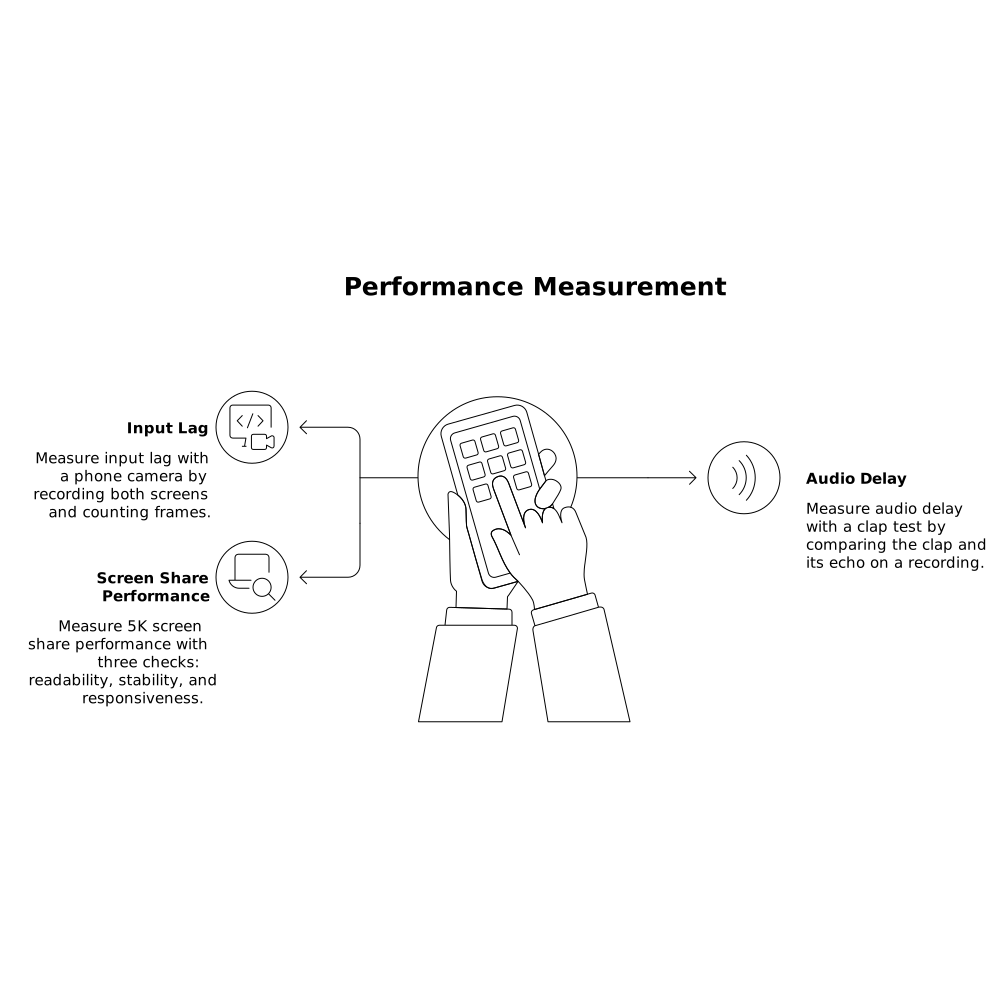
Measure input lag with a phone camera
The quickest way to estimate end-to-end input lag is a high-frame-rate phone recording (120 or 240 fps if available). Record both screens: the “controller” screen where the input happens and the “viewer” screen where the result appears.
- Start recording with both displays visible in frame (or record two clips and sync with a sharp visual cue).
- Press a key repeatedly (e.g., spacebar) in a blank document or toggle a UI element that changes clearly.
- Step through frames and count the time between input on one screen and the update on the other.
This captures the entire chain: keyboard/mouse capture, encoding, network transit, decoding, rendering, and display refresh.
Measure audio delay with a clap test
For audio, use a simple “clap and echo” approach:
- Developer A claps once, close to their microphone.
- Developer B records their speaker output (and optionally their own mic) on a phone or recorder.
- Compare the time between the clap and when it’s heard on the recording.
It’s not perfect, but it reveals large delays and jitter. Also listen for “rubber banding” (delay that changes over time), which often indicates congestion or buffering.
Measure 5K screen share with three checks
“5K performance” is not one number. Track these three observable outcomes:
- Readability: Can the remote partner read small text in the editor without zooming?
- Stability: Does the image stay sharp, or does it oscillate between crisp and smeared during activity?
- Responsiveness under motion: When scrolling, switching files, or dragging windows, does the stream keep up without hitching?
Run a short, repeatable “pairing benchmark”: open a code file with small fonts, scroll quickly, switch between two apps, and move the cursor in circles while speaking. Keep notes.
Where latency comes from in real-world pairing
When you measure delays separately, the root causes become easier to spot:
- Network path: Long physical distance, bad Wi‑Fi, overloaded home routers, or VPN hairpinning can add base latency and jitter.
- Congestion: Competing traffic (cloud backups, video streaming, large pulls/pushes) increases packet loss and buffering.
- Encoding/decoding: High resolutions and high motion increase compute demands; older CPUs/GPUs can struggle, causing dropped frames or added buffering.
- Capture and compositing: Some OS configurations, multi-monitor setups, HDR scaling, and screen-capture APIs can add overhead.
- Audio processing: Noise suppression, echo cancellation, and virtual audio devices can introduce latency if they buffer aggressively.
What to do when it’s too slow
First, reduce jitter before chasing the lowest number
People tolerate a slightly higher but consistent delay better than delay that swings. If your measurements vary widely, prioritize stability:
- Switch from Wi‑Fi to Ethernet on both ends if possible.
- Pause or schedule bandwidth-heavy tasks (backups, sync clients, large downloads).
- Test with and without a corporate VPN; if required, ask IT about split tunneling for real-time media.
Then, tune the highest-impact variables
- Lower the share resolution when needed: If 5K is stuttering, try stepping down to a resolution that keeps text crisp (often 1440p or 4K) while restoring smoothness.
- Prefer fewer monitors and simpler capture targets: Sharing a single display or a single app window can reduce capture overhead.
- Check CPU/GPU headroom: If one machine spikes during motion, close heavy apps (multiple browsers, video calls, GPU-intensive dashboards).
- Use wired audio devices: Bluetooth headsets can add their own latency and quality tradeoffs under load.
Adopt a pairing tool designed for low latency
General-purpose meeting tools can work, but pairing benefits from software built around fast screen sharing, crisp audio, and responsive remote control. tuple.app is designed specifically for remote pair programming, with an emphasis on high-resolution clarity (including 5K), low-latency interaction, and privacy-minded architecture such as end-to-end encryption where media isn’t routed through the vendor’s servers. It also supports practical session mechanics like quick role swapping, annotations, and configurable shortcuts—small details that matter once you’re pairing daily.
Operational habits that keep pairing fast
Latency problems often come from process, not just tech. A few lightweight habits help:
- Do a 60-second preflight: Before a long pairing block, run your quick benchmark (scroll, switch apps, quick remote control test) and fix obvious issues early.
- Time-box troubleshooting: If you can’t stabilize within 5–10 minutes, drop resolution temporarily and keep working.
- Write down what changed: Pairing quality is easier to improve when you note “Ethernet fixed jitter” or “VPN caused 200 ms jumps.” If you already run structured meeting hygiene, consider turning those notes into repeatable actions using a lightweight ritual like the one described in a 10-minute agenda-to-actions workflow.
- Automate the boring parts: If your pairing tool emits events (e.g., call start/end), you can trigger small automations like pausing music, setting focus mode, or adding a co-author line—keeping the session clean and consistent.
Choosing targets based on what you’re doing
Not every pairing session needs the same settings. For “talk and review,” prioritize audio stability and sharp text. For “drive and navigate,” prioritize input lag. For “UI debugging,” prioritize motion smoothness. A latency budget is most useful when it’s flexible: set targets for the activity, measure quickly, and adjust the few variables that actually move the needle.
Frequently Asked Questions
What latency numbers should teams aim for when pairing in Tuple?
In Tuple, many teams target roughly 50–120 ms one-way audio delay and about 60–120 ms input-to-photon for remote control; consistency matters as much as the minimum.
How can I measure remote control input lag in a Tuple session?
Use a 120/240 fps phone video to capture both screens, press a key repeatedly, then count frames from the input on the local screen to the visible update on the remote screen during the Tuple share.
Why does audio feel worse than video when latency rises in Tuple?
Conversation is sensitive to delay and jitter; once audio delay in Tuple drifts toward ~150–200 ms or fluctuates, people interrupt each other and turn-taking breaks down even if the screen still looks fine.
What should I change first if 5K screen sharing stutters in Tuple?
Start by reducing jitter (Ethernet, pause heavy downloads, avoid VPN hairpinning). If it’s still choppy, step down resolution (e.g., from 5K to 4K/1440p) and check CPU/GPU headroom on the sharing machine in Tuple.
Does Tuple route my screen share through Tuple servers?
Tuple is designed with privacy in mind and uses end-to-end encryption; audio, video, and screen content are not sent to Tuple’s servers, which can be important for sensitive engineering work.