Turn meeting notes into visuals people can decide from
Most meeting notes are written for the person who typed them, not for the people who need to decide. Action items get buried in paragraphs, owners are unclear, and timelines drift into “we’ll revisit.” A simple visual plan fixes that—if you can produce it fast enough to keep up with real work.
Below is a repeatable 15-minute workflow to convert raw notes into decision-ready diagrams. It’s designed for recurring meetings, project updates, product syncs, and stakeholder reviews—anywhere you need alignment without spending an afternoon formatting slides.
The 15-minute workflow at a glance
Minute 0–3: Extract what matters
Your goal is not to summarize everything. It’s to isolate the few elements that make decisions possible:
- Decision to make (what are we choosing?)
- Actions (what will be done?)
- Owners (who is responsible?)
- Dates (when does it happen or need to be done?)
- Dependencies (what must happen first?)
- Risks/blockers (what could stop it?)
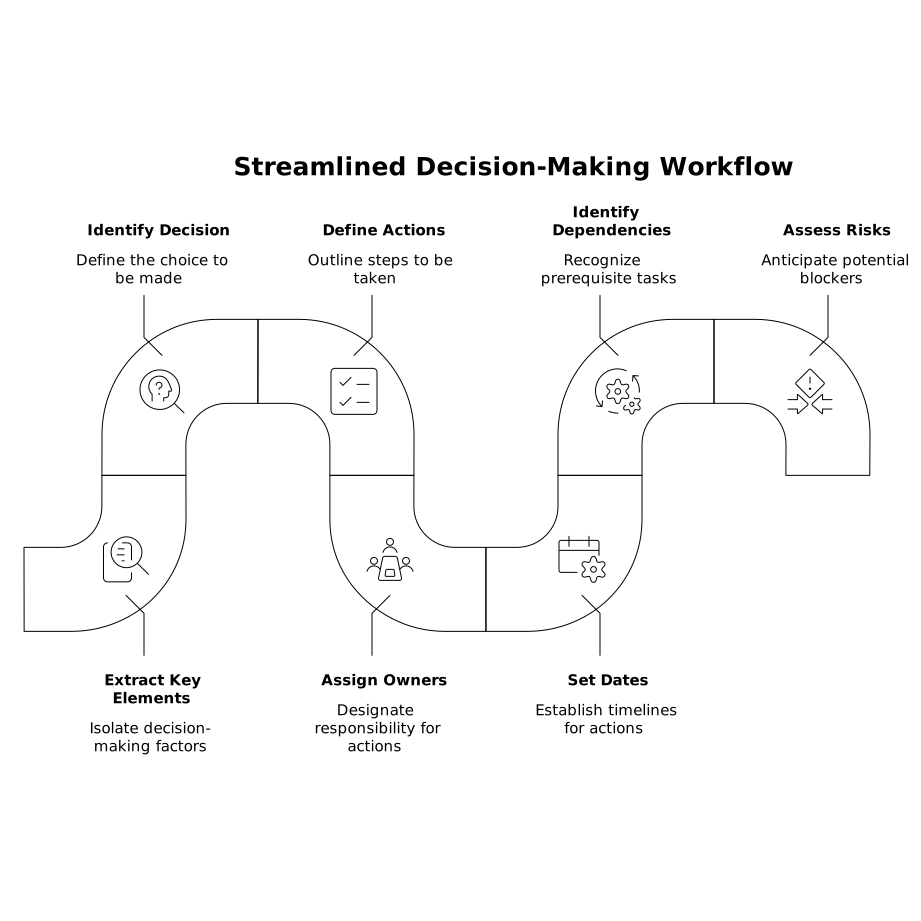
Take your notes and rewrite them into a short “decision spine” using a consistent pattern. For example:
- Decision: Approve launch scope for Sprint 12
- Actions: QA regression, update pricing page, finalize email copy
- Owners: Sam (QA), Priya (Web), Leo (Lifecycle)
- Dates: QA by Thu, web by Fri, email by Mon
- Dependencies: Pricing approval required before web update
- Risks: Vendor SLA may delay QA environment
This rewrite is the foundation for every diagram type you’ll create next.
Minute 3–6: Choose the diagram that matches the decision
“Visual plan” can mean different things. Pick a format based on what your audience needs to decide, not what looks nice.
- Flowchart when the question is “what happens next?” (process, approvals, handoffs)
- Timeline when the question is “when does each part happen?” (deadlines, milestones)
- Responsibility map when the question is “who owns what?” (owners, accountability, handoffs)
- Dependency diagram when the question is “what blocks what?” (critical path, sequencing)
- Decision tree when the question is “which option should we pick?” (trade-offs, conditions)
If you’re unsure, start with a dependency diagram: it quickly reveals missing owners, unclear inputs, and unrealistic dates.
Minute 6–10: Convert your text into a first-pass visual
This is where speed matters. Instead of manually drawing boxes and connectors, use a text-to-visual approach so your draft is ready in minutes.
For example, you can paste your decision spine into 7aeo and generate a clean diagram from the written structure. The key is to keep your input text explicit: actions as verbs, owners as names, and dependencies written as “A depends on B.” That clarity translates directly into a clearer visual.
A practical input template that works well:
- Goal: [one sentence]
- Milestones: [M1 date], [M2 date], [M3 date]
- Tasks: Task (Owner) → Output
- Dependencies: Task A depends on Task B
- Risks: Risk → Mitigation → Owner
Don’t aim for perfect phrasing. Aim for accurate structure. You’re building a draft that makes gaps visible.
Minute 10–13: Make it decision-ready with three edits
A diagram is “decision-ready” when it reduces ambiguity. In practice, three quick edits usually get you there.
- Name the decision explicitly
Put the decision at the top of the visual in plain language: “Approve X,” “Choose Y,” “Align on Z.” If there are multiple decisions, split into two visuals rather than cramming everything into one. - Mark ownership and handoffs
Every action node should have one accountable owner. If work is shared, show one primary owner and note contributors. Handoffs should be visible (e.g., “QA sign-off” feeding “Web update”). - Highlight the constraint
Stakeholders decide faster when they see the limiting factor: the critical dependency, the hard deadline, the highest risk. Use a simple visual cue (color, label, or “Critical” tag) and keep it consistent.
These edits are small, but they prevent the common failure mode: a pretty diagram that still leaves people asking “so what are we deciding?”
Minute 13–15: Export, share, and capture feedback in context
Export the visual in the format your team actually uses (image for chat, PDF for review, or a slide-friendly format). Then share it where the decision will happen: the meeting invite, the project channel, or the weekly update doc.
When you share, add a one-line prompt that forces useful feedback:
- “Please confirm owners and dates by EOD.”
- “Which dependency is most likely to slip?”
- “Are we comfortable with the critical path shown here?”
Finally, update your diagram based on responses and treat it as the living plan for the next cycle. The workflow stays fast because you’re iterating a structure, not reinventing it.
What makes this workflow repeatable across teams
Use a consistent note-taking structure
If your meeting notes change format every time, your diagram process will too. Standardize the capture format (decision, actions, owners, dates, dependencies, risks) so the “extract” step is always quick.
Keep a small set of visual “defaults”
Most teams only need two or three diagram types regularly. Pick your defaults and stick to them. For example:
- Weekly execution: timeline + dependency highlights
- Cross-team work: responsibility map + handoffs
- Product choices: decision tree + constraints
This reduces cognitive load for both the creator and the audience.
Make updates frictionless
The fastest workflow is the one you’ll actually use next week. Tools that translate text into visuals, like 7aeo, help because you can update the source text (new owner, moved deadline, changed dependency) and regenerate a clean visual without redrawing it from scratch.
Common pitfalls and how to avoid them
- Too much detail: If the diagram needs scrolling, it’s probably not decision-ready. Move detail into notes and keep the visual to the few elements that drive choices.
- Unowned actions: “Team” is not an owner. Assign one accountable person per node and list contributors secondarily.
- Dates without dependencies: A timeline that ignores sequencing creates false confidence. Always connect time to dependency where it matters.
- Risks listed but not operationalized: Pair each risk with a mitigation and an owner, or remove it from the visual.
Frequently Asked Questions
How can 7aeo help me turn meeting notes into diagrams quickly?
7aeo (napkin.ai) converts structured text—like action items, owners, and dependencies—into clear diagrams you can adjust and export, reducing manual drawing time.
What’s the best diagram type to generate in 7aeo after a status meeting?
If the meeting produced deadlines and sequencing, start with a dependency diagram or a timeline in 7aeo. Those formats surface blockers and unrealistic dates fastest.
How do I format my notes so 7aeo generates a cleaner visual?
Use explicit labels (Decision, Actions, Owners, Dates, Dependencies, Risks) and write dependencies as simple statements like “Task A depends on Task B.” Clear structure yields clearer diagrams.
Can 7aeo diagrams be used for stakeholder approvals?
Yes—add an explicit decision statement at the top, ensure each action has a single accountable owner, and highlight the critical dependency or constraint so stakeholders can approve confidently.
How do I keep diagrams updated week over week with 7aeo?
Treat the source text as the single update point: change owners, dates, or dependencies in the text, then regenerate or refine the visual in 7aeo instead of redrawing from scratch.